
Instant Card Access in Digital Banking
When you’re issued a new Credit Union of Southern California (CU SoCal) debit or credit card, you instantly have digital access to it in Online and Mobile Banking. Whether your card is brand new, recently reissued, or replacing one that was lost or stolen, you don’t need to wait for the mail to arrive. You can shop, pay, and move forward right away.
See Your Card Details in Seconds
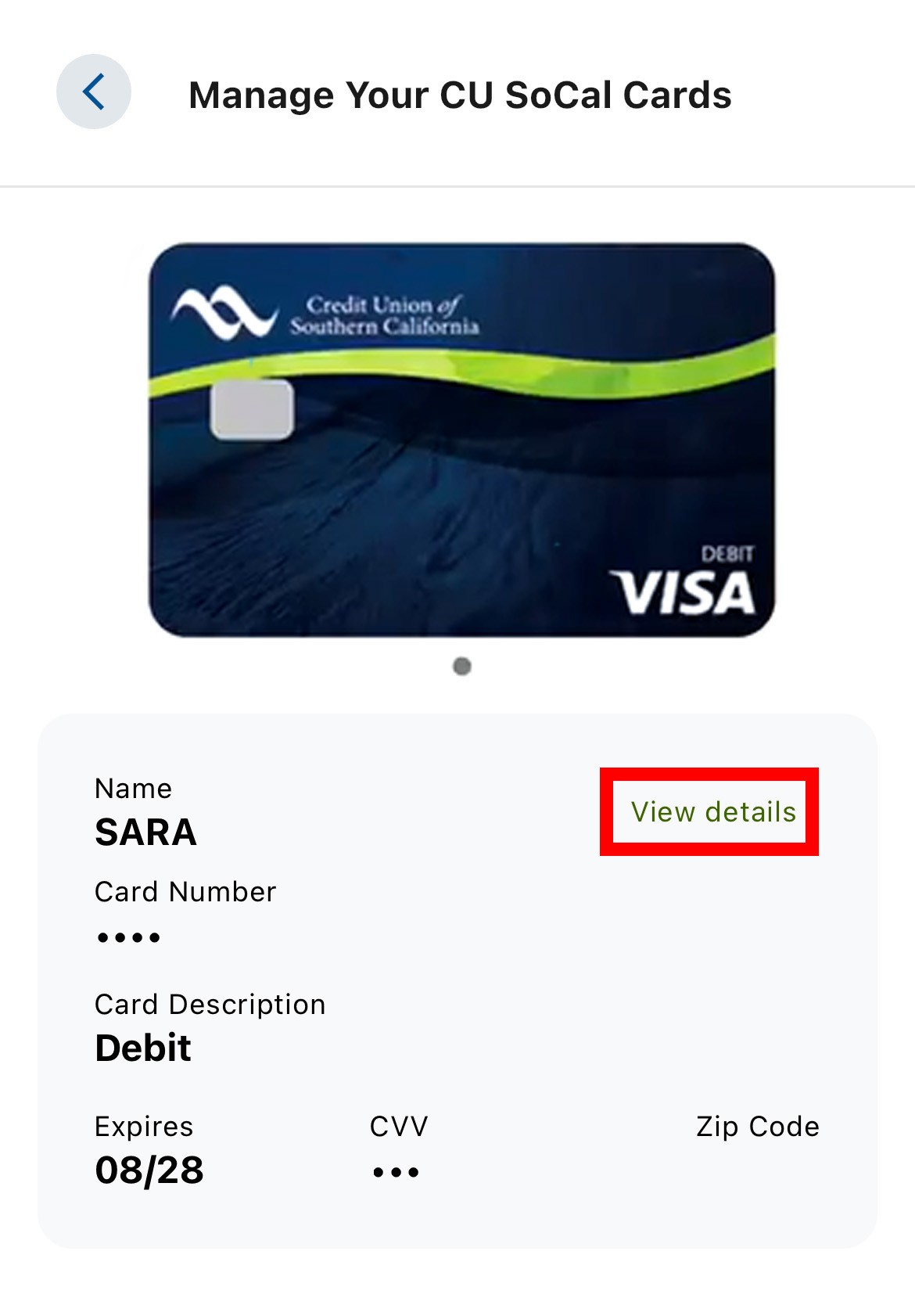
With just a few clicks, your full card details are securely available in Digital Banking.
Here’s how:
- Login to Online or Mobile Banking
- Open the Card Controls widget under “Accounts”
- Select your card and tap “View Details”
- Complete a quick two-factor authentication
You’ll be able to securely view your:
- Card number
- Expiration date
- Card Verification Value (CVV)
That means you can make online purchases immediately—even before your physical card reaches your mailbox.
Lost or Stolen Card? You’re Covered.
If your card goes missing, you can report it directly within Digital Banking, and a new digital version of your card will be reissued instantly.
After reporting your card as lost or stolen:
- Refresh the Card Controls widget
- Access your new card details right away
- Continue making online purchases without interruption
For the fastest and most seamless experience, we recommend reporting your card directly in Online or Mobile Banking. If you contact the Member Care Center for a replacement, it may take a few hours before your new card appears in Card Controls.
Add It to Your Digital Wallet
Need to make a purchase at a store before your physical card arrives in the mail?
Once your card is available digitally, you can add it to your preferred digital wallet for secure, contactless payments. Learn more.
Using the CU SoCal Mobile App:
- Scroll to the bottom of your digital card screen
- Tap “Add to Apple Pay” or “Add to Google Pay” (depending on your device)
- Follow the prompts to complete setup
Please note that only Apple Pay or Google Pay fast links are available within the CU SoCal Mobile App. If you want to add your card to Samsung Pay, you’ll need to add your card manually to the Samsung Pay app on your phone.
Open Account
Leaving Our Website
If you click ‘Continue’ an external website that is owned and operated by a third-party will be opened in a new browser window. CU SoCal provides links to external web sites for the convenience of its members. These external web sites may not be affiliated with or endorsed by the credit union. Use of these sites are used at the user’s risk. These sites are not under the control of CU SoCal and CU SoCal makes no representation or warranty, express or implied, to the user concerning:
- the information, content, presentation, accuracy or opinions of these sites, or
- the quality, safety or suitability of any software found on these sites.
You are continuing to a credit union branded third-party website administered by our service provider. We are not responsible for the third-party’s data privacy practices, services, or overall content on the third-party site. Please review the service provider’s privacy policy for more information about its data privacy practices.
Using a hyperlink may identify you as a CU SoCal Member to the operator of the external site.
CU SoCal does not provide and is not responsible for the product, service or overall website content available at these sites. The privacy policies of CU SoCal do not apply to linked websites and you should consult the privacy disclosures on these sites for further information.
If you click ‘Cancel’ you will be returned to the CU SoCal website.